Your newsletter, sent
Tools Studio builds the newsletter; your email platform sends it to your list. Your template covers every issue for a year, and you can change anything as often as you like.
- 1Build and exportAbout 10 minutes
- 2Send from your platformAbout 15 minutes · day 2
- 3Track which links workAbout 5 minutes · day 7
- +A monthly rhythmFor later · day 30
1
Build and export
About 10 minutes- Open your newsletter in the Newsletter Builder, change the words, dates and photos, and add a subject.
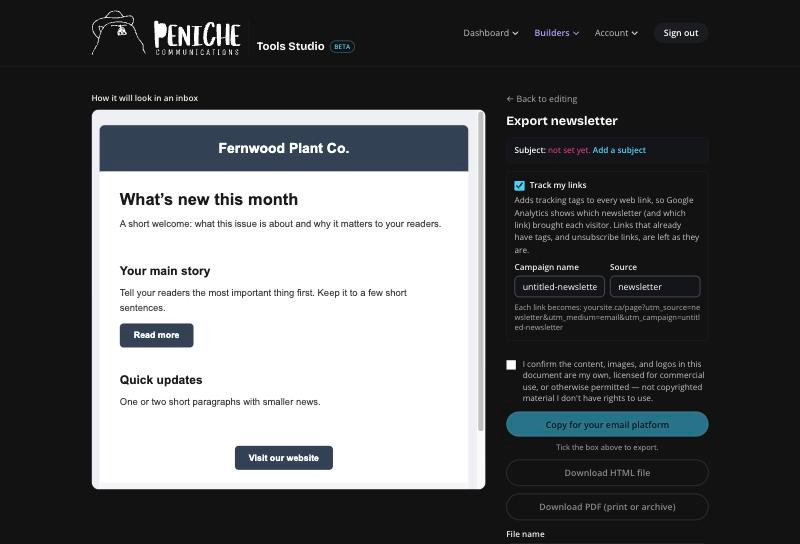
- Go to Export. Leave Track my links ticked (see stage 3).
- Tick the box confirming the content is yours.
- Press Copy for your email platform. (Or Download HTML file to keep a copy.)
2
Send from your email platform
About 15 minutesPick yours. Each one needs the code pasted into its own code editor, and its own unsubscribe link.
Hostinger Reach
- Create a new email template.
- Switch to the Code editor.
- Paste and save.
Unsubscribe link: leave it blank in Tools Studio. Reach adds its own.
MailerLite
- Create a campaign.
- Choose Custom HTML editor.
- Paste.
Unsubscribe link: {$unsubscribe} (Footer section in Tools Studio).
Mailchimp
- Create an email.
- Choose Code your own → Paste in code.
- Paste.
Unsubscribe link: *|UNSUB|*
- Send a test to yourself first.
- Open it on your phone and on your computer.
- Happy? Send it to your list, or schedule it.
You'll know it worked when the test looks like the preview in Tools Studio, on both screens.
Canada's anti-spam law (CASL) applies to newsletters: only send to people who agreed to hear from you, show who it's from, and keep the unsubscribe link in every issue.
3
Track which links work
About 5 minutesTrack my links tags every link, so Google Analytics shows which newsletter, and which link in it, brought each visitor to your site.
- Leave Track my links ticked when you export.
- Your subject becomes the campaign name, so each issue shows separately. You can change it on the Export page.
- Links that already have their own tags, and unsubscribe links, are left alone.
+
A monthly rhythm
About an hour a monthWeek 1
Jot down 3 things worth sharing: news, a tip, an offer or an event.Week 2
Open last month's issue, swap in the new words and photos, and export.Week 3
Send a test to yourself, then send to your list.Week 4
Check opens in your platform and clicks in Google Analytics. Keep what worked.Your template's year covers every issue until it ends. The Export page always shows the end date.
If something's not right
The pasted email looks different from the preview
Make sure you pasted into the platform's code editor (Code editor, Custom HTML editor or Paste in code), not its drag-and-drop editor, and that you pasted the whole thing.
Images don't show in the test email
Some email apps hide images until you allow them for that sender. Press “Show images”. If they still don't show, export again and paste the fresh copy.
The platform says the email has no unsubscribe link
Add your platform's unsubscribe code in the Footer section in Tools Studio (see stage 2), then export and paste again. Reach adds its own, so leave it blank there.
No newsletter visits in Google Analytics
Check Track my links was ticked when you exported, and give it a day: Analytics can take up to 24 hours to show new visits.
Questions?
Reply to any of your set-up emails, or get in touch. We'll help you get your first issue out.
Get helpPeniche Communications · Edmonton, Alberta · Back to top